Easy Guide to Registering an Account on Easyscanner for Android

Easy Scanner is one of the more popular document scanning apps on Android, and you can use it without an account. Signing up is worth the two minutes, though: with an account your scans are backed up and you can open them on your other devices. Here's how it goes on an Android phone.

1. Download Easyscanner from Google Play Store
Open the Google Play Store, type "Easy Scanner" into the search bar and pick the app with the icon shown below. Tap Install.


2. Choose to Sign Up with an Email Address
Open the app once it's installed. On the main screen, tap "Use Email Address".

3. Enter Your Email Address
Type your email into the Email Address field. Use an inbox you actually check, because the confirmation email goes there in a minute.
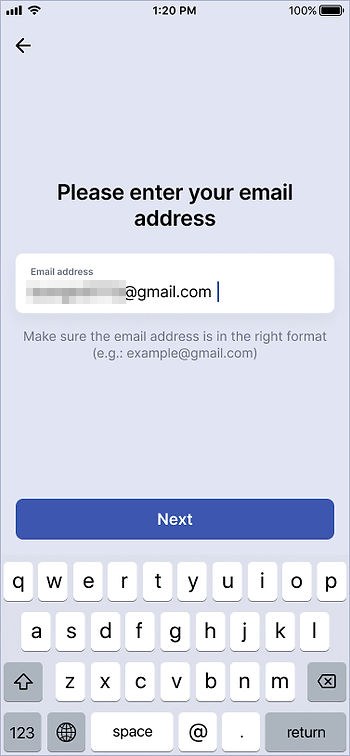
4. Set Your Password
Next, create a password. It has to be at least 6 characters long. A mix of letters and numbers is harder to guess than a word or your birthday.

5. Confirm Registration
Tap "Signup". The app sends a confirmation email to the address you entered. If it's not in your inbox after a minute or two, look in the spam folder.
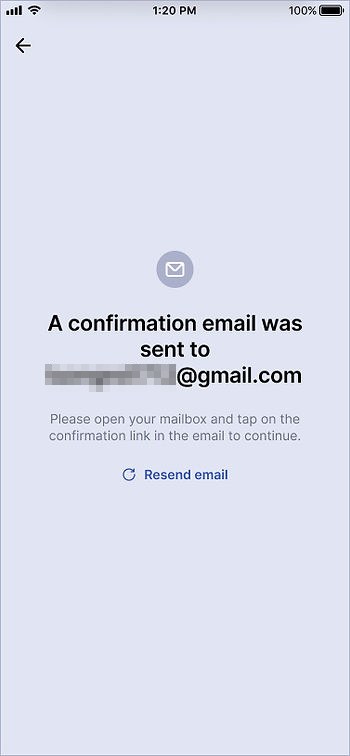
6. Re-enter Your Password
Once you've confirmed the email, go back to Easy Scanner and enter the password you just created to finish signing up.
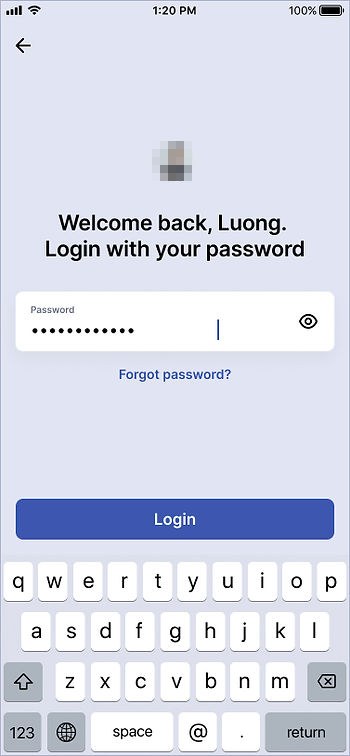
7. Complete to register an Easyscanner account
That's it. You're signed in, and anything you scan from now on is tied to your account, so you can share it, sort it into folders and find it again later on another device.

Why use Easy Scanner with an account?
- Quick to use: a page takes a few seconds to scan, and the app finds the edges and crops it for you.
- Stored with your account: your documents are kept with your account instead of only on one phone.
- Cloud backup: scans are saved to the cloud, so you can open them from your other devices.
If you haven't installed it yet, get the Easy Scanner app from Google Play and try scanning a receipt or a letter first. It's the quickest way to see how the cropping works.