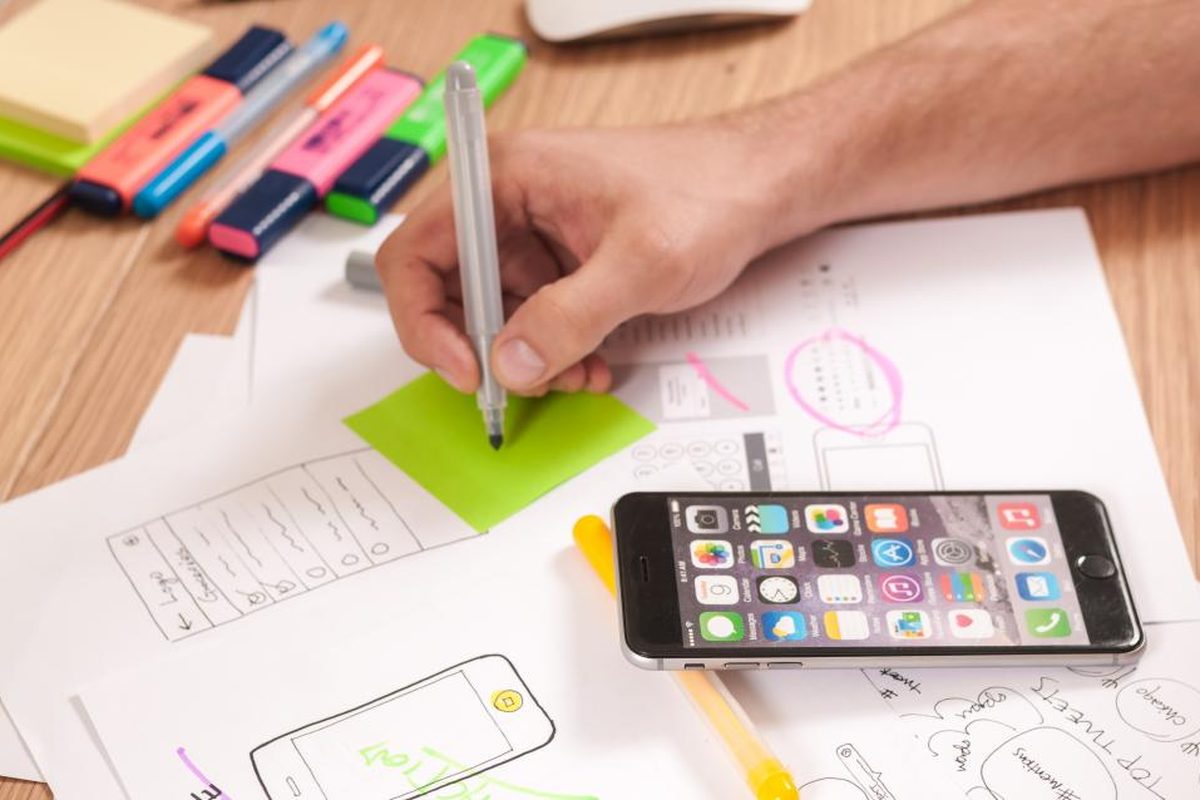
Easy Guide to Registering an Account on EasyScanner for iOS 📱

Easy Scanner is a document scanning app for iPhone and iPad (it's on Android too). An account is what lets your scans sync and back up across devices. If you get a new phone or want the same files on your iPad, you'll want one. It takes about two minutes.
A bit of background first. Easy Scanner turns paper into PDFs and images using your phone's camera. It finds the edges of the page, crops it, cleans up the image, and can pull the text out with OCR (optical character recognition) so you can search or copy it. People use it for contracts, receipts and class notes, mostly. Here's how to set up your account on iOS.

1. Download EasyScanner from the App Store
Open the App Store, search for "Easy Scanner" and look for the app with the scanner icon shown below. Tap Get to install it.


2. Open the Easy Scanner app
Once it's installed, tap the icon on your home screen to open it.
3. Choose "Use Email Address"
On the sign-in screen, tap Use Email Address to start registering.

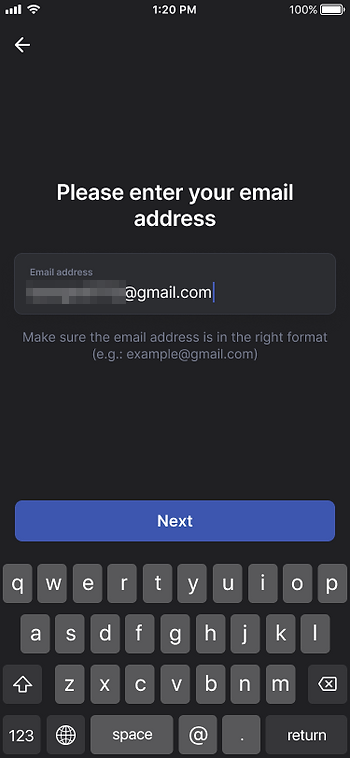
4. Enter your email
Type your address into the Email Address field. Use one you actually check, because the next step sends a verification message there.
5. Set your password
Pick a password that's at least 6 characters long. Longer is better, and it's a good idea not to reuse one from another site. Then tap Sign Up.

6. Verify your email
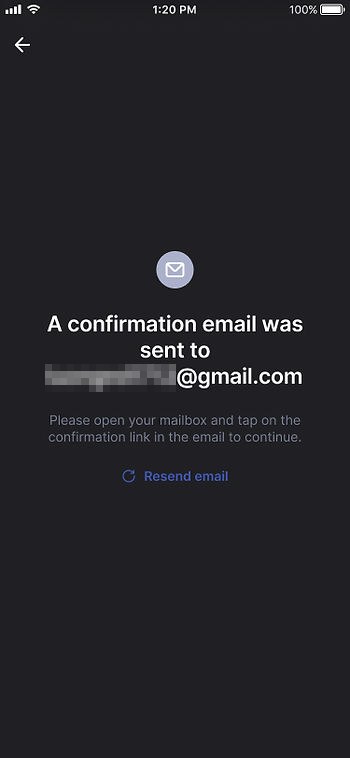
After you tap Sign Up, Easy Scanner sends you a verification email. Open it and follow the instructions inside. If it isn't in your inbox after a minute or two, check your spam or promotions folder.
7. Complete registration
Go back to the app, enter the password you just created, and you're in. From here you can start scanning, and your documents will sync to any other device where you sign in with the same account.

What you can do with Easy Scanner on iOS
- Clean scans: automatic edge detection crops the page so you get the document, not your desk.
- Cloud services: send your documents to services like Google Drive, Dropbox and iCloud.
- Multi-page PDFs: scan several pages and save them as one PDF.
- OCR: pull the text out of a scan so you can search it or copy it into another app.
Before you start scanning
A couple of things we'd suggest once you're signed in. Make a few folders first (work, home, receipts) so scans don't pile up in one list. And if you also use an Android phone or tablet, sign in there with the same email so everything shows up in both places.
More guides: